
Managing teacher accounts for Academy Plans
Managing teacher accounts is straightforward, and this article covers the essentials. If you have any questions or need further clarification, contact our support team, and we will be happy to assist you.
Adding teachers manually
Go to the 'My Account' page on the main menu and navigate to the 'Subscriptions' tab. You will see an option called 'Sub Accounts':
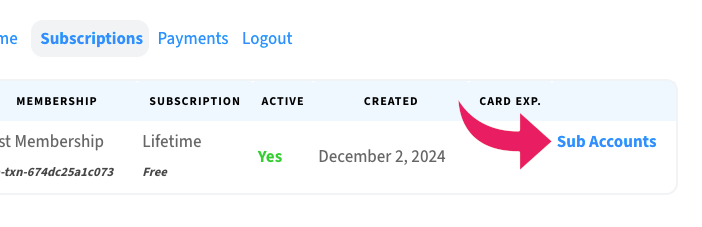
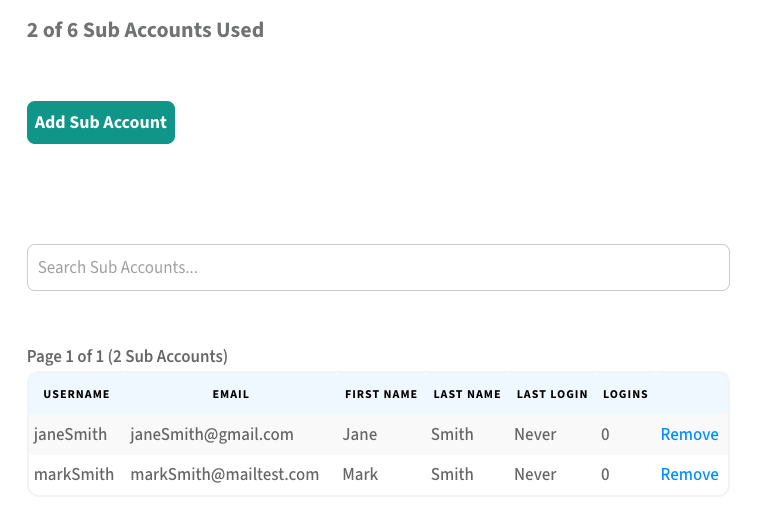
Clicking on that link will reveal the Academy Plan teacher information for the account:
Add Sub Account (button) – Clicking this button will reveal a form where you can add a new teacher to your account:
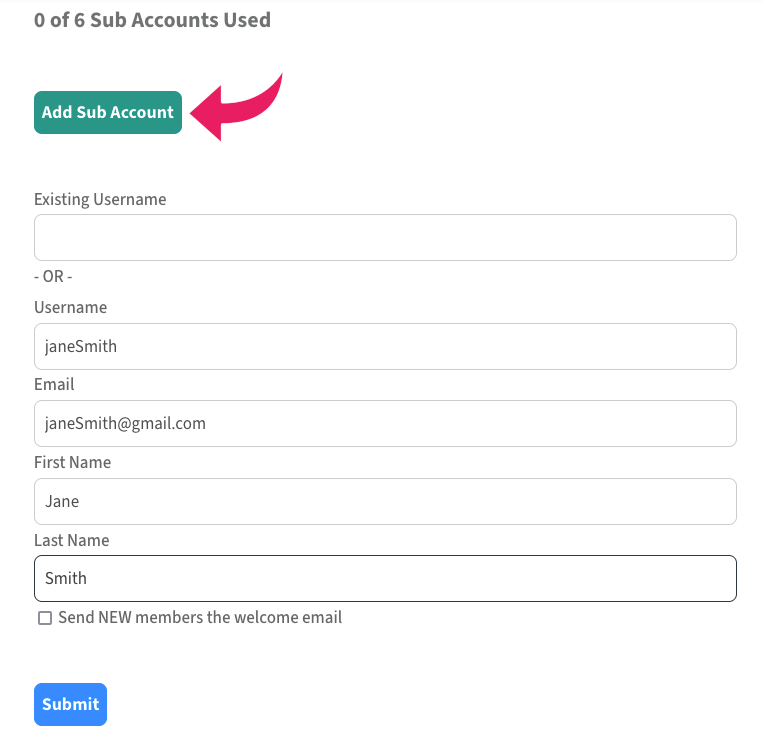
- Username: (Required) Enter the username that will be associated with the teacher. Please note that usernames cannot be changed once submitted, so it's important that this is entered correctly.
- Email: (Required) Enter the email that will be associated with the teacher account. The new teacher's welcome email will be sent to this email if that option is enabled below.
- First Name: (Optional) Enter the first name of the user as needed.
- Last Name: (Optional) Enter the last name of the user as needed.
- Send NEW teachers the welcome email: (Optional) Check the box next to this option to send the new teacher account Welcome Email to the email address entered above.
Send a signup URL
Rather than add every teacher individually, it may be more practical to send out a group email containing a signup link.
Go to the 'My Account' page on the main menu and navigate to the 'Subscriptions' tab. You will see an option called 'Sub Accounts':
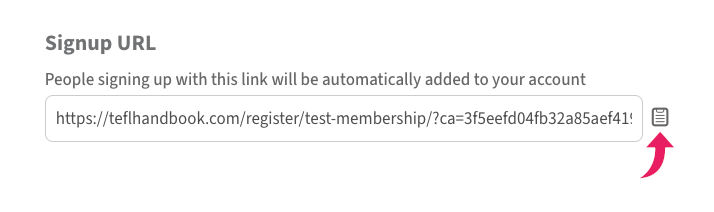
Clicking on that link will reveal the Academy Plan teacher information for the account. At the bottom, you'll see the Signup URL option. This is a simple URL that the Administrator can copy and send to teachers they'd like to add to under their membership. Use the clipboard icon to copy it quickly.
Removing a teacher
Go to the 'My Account' page on the main menu and navigate to the 'Subscriptions' tab. You will see an option called 'Sub Accounts':
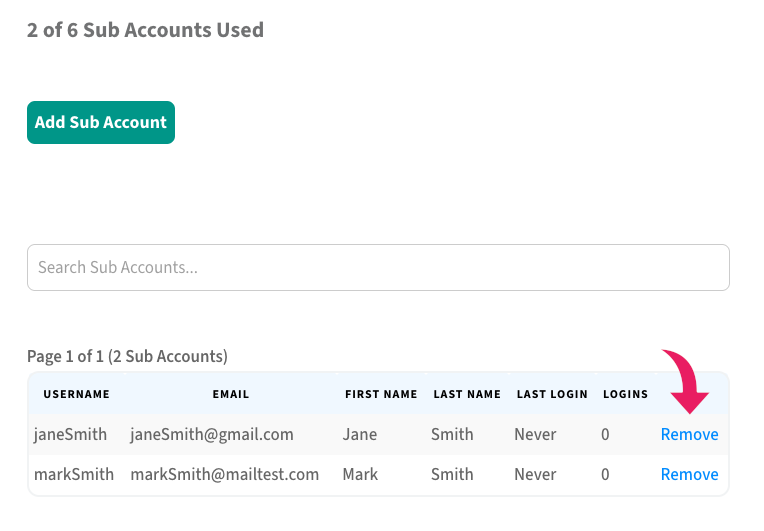
Clicking on that link will reveal the Academy Plan teacher information for the account. From here, you can see a table containing all of your active teacher accounts and remove any that are no longer needed:
Upgrading your plan
To upgrade your current plan so that you can add more teachers to your account, go to the accounts option on the main menu and select the tab subscriptions to see your current plan's details.
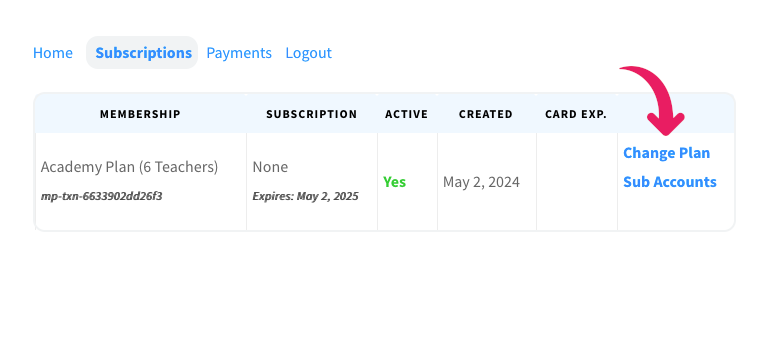
On the right hand column, select change plan to reveal a popup with your options.
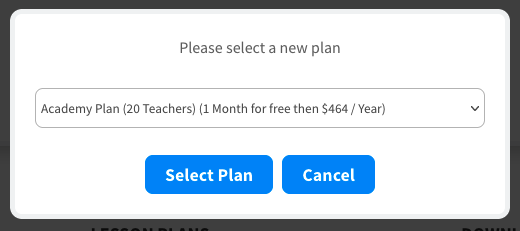
Select the plan you want and go through the signup process to update to that plan.
When you update to a new plan, Your billing cycle is reset to the current date and you will pay an amount which takes into account the prorated value of your current membership.